
Workspaces
What Are Workspaces
Workspaces help you categorize different workloads and serve them bundled to the users.
Within Focuszone UI
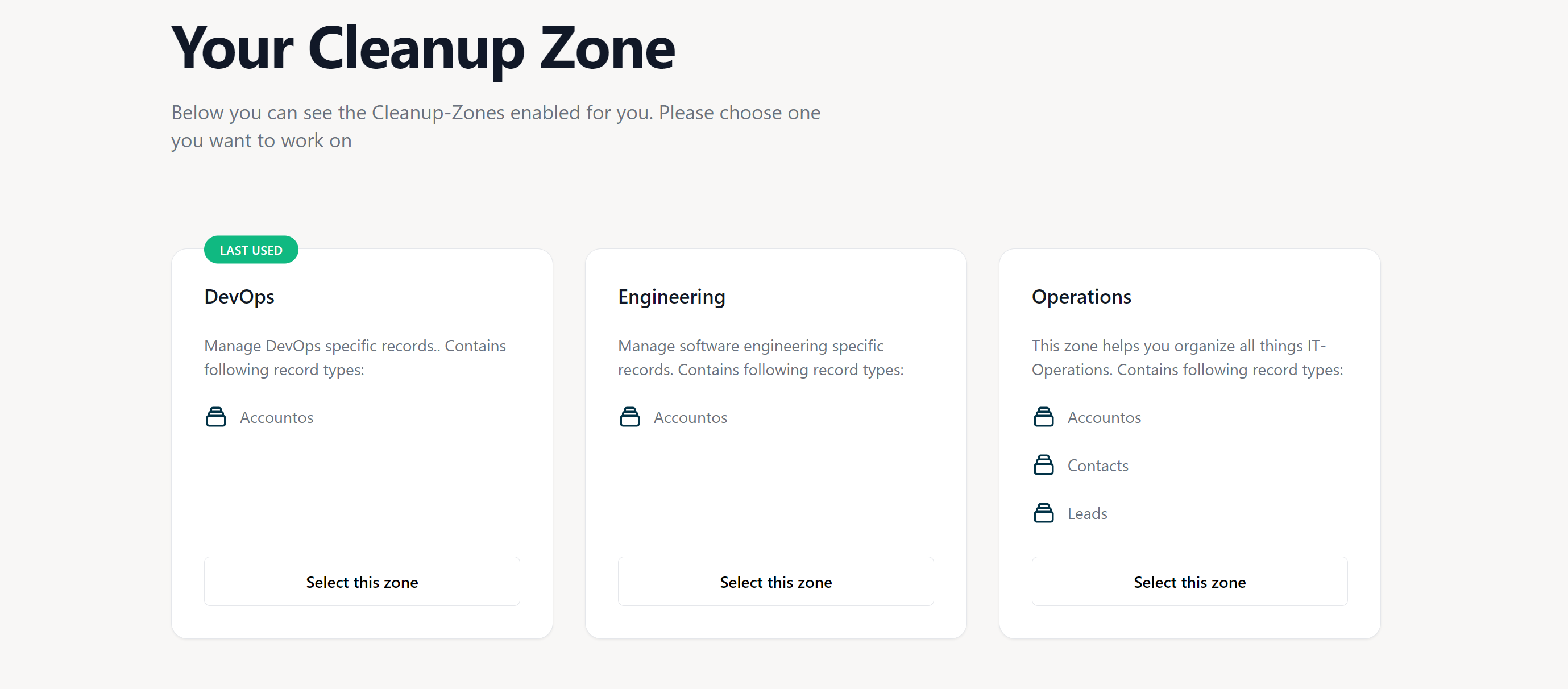
Workspaces are the main entry point in the NEA X Focuszone UI:
Add A New Workspace
To add a new workspace, follow these steps:
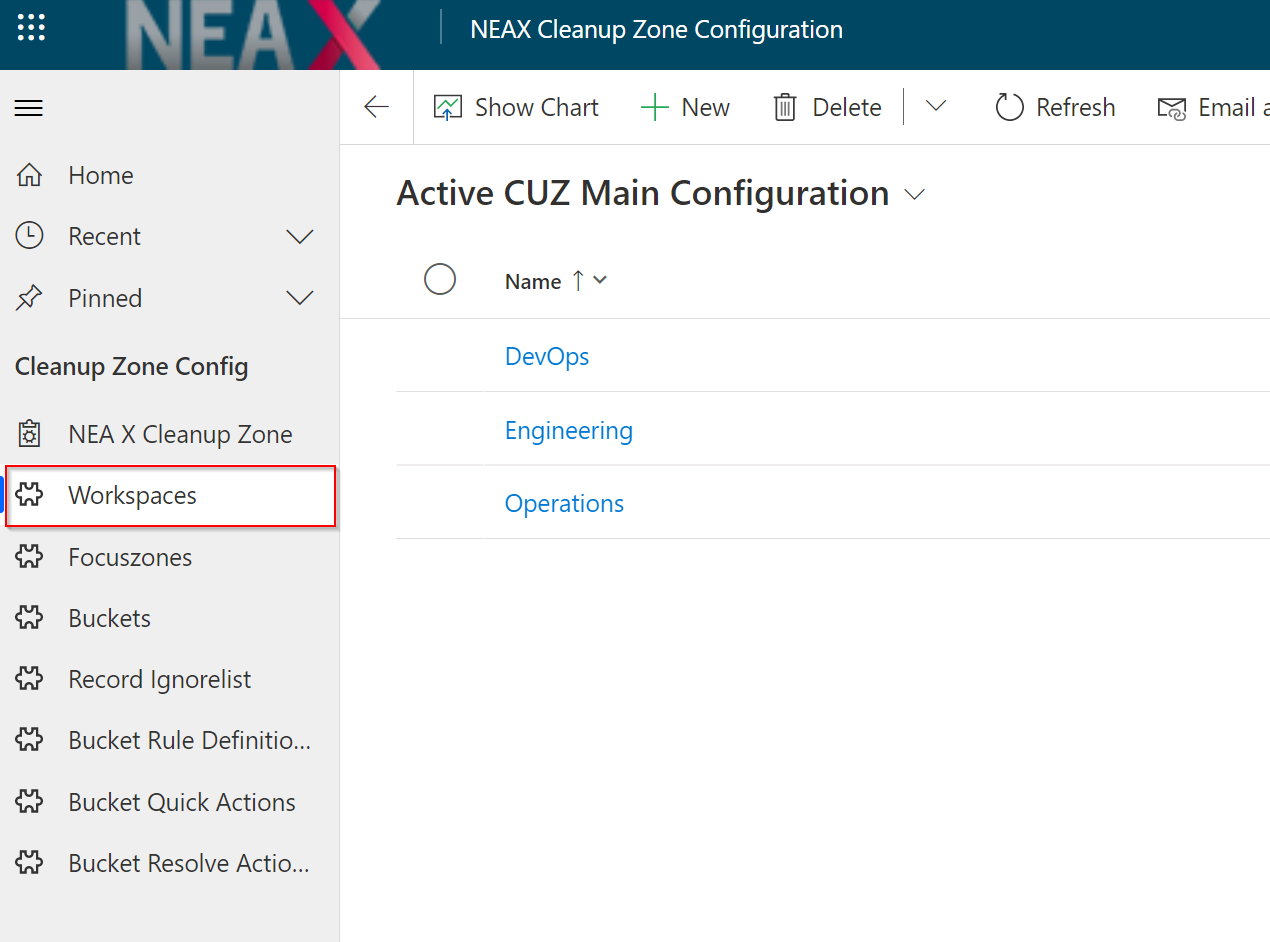
Open the NEA X Focuszone App in Dynamics 365 and click Workspaces on the sitemap on the left:
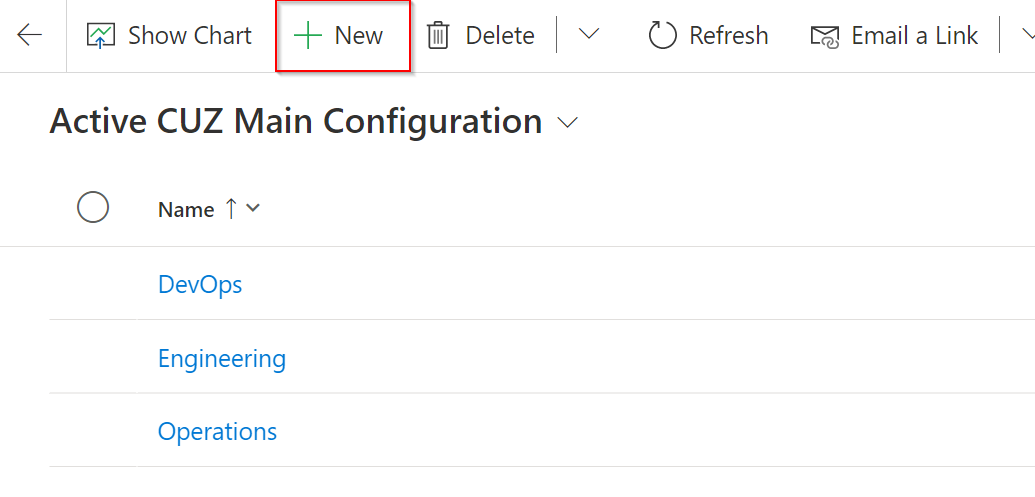
Click on NEW in the top toolbar:
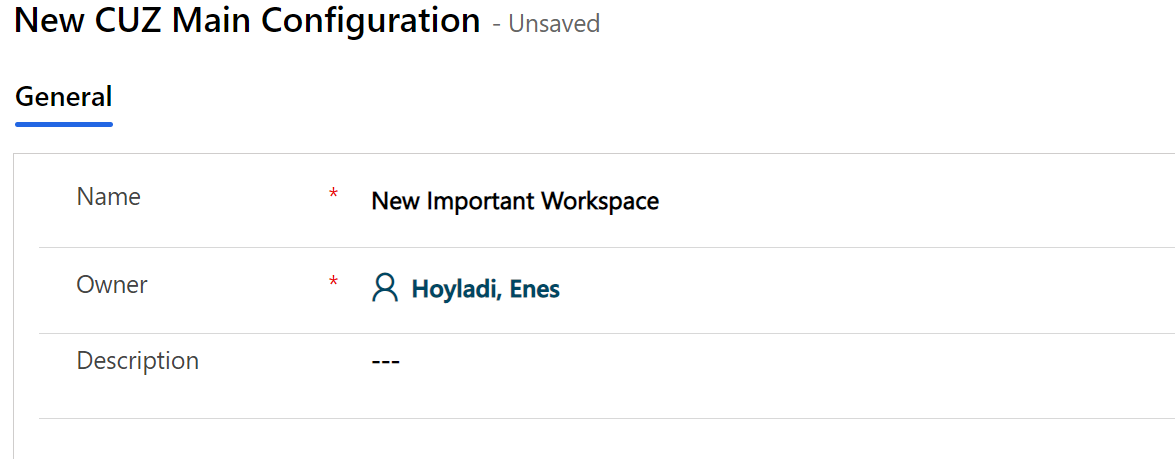
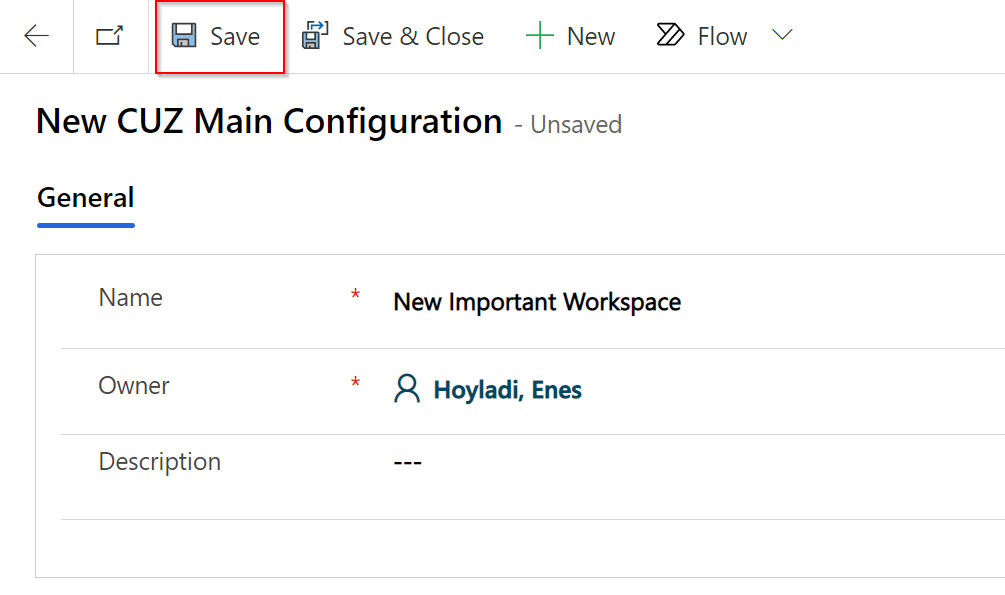
Fill in the mandatory fields on the create form:
Click on the Save button to finish:
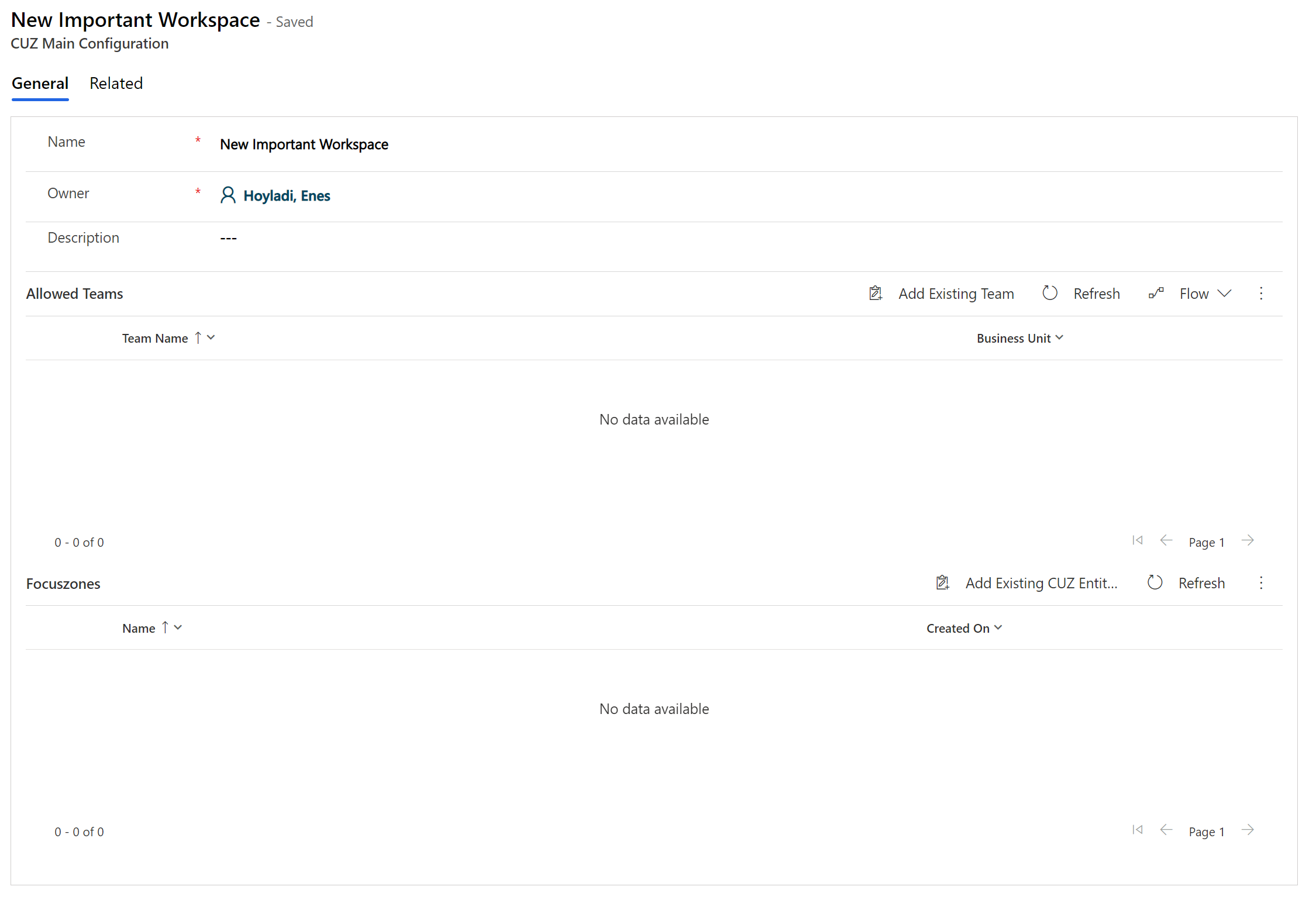
Following form should be opened now:
Associate Allowed Team
You can restrict access to the new workspace by adding a team to the Allowed Teams subgrid on the workspace form.
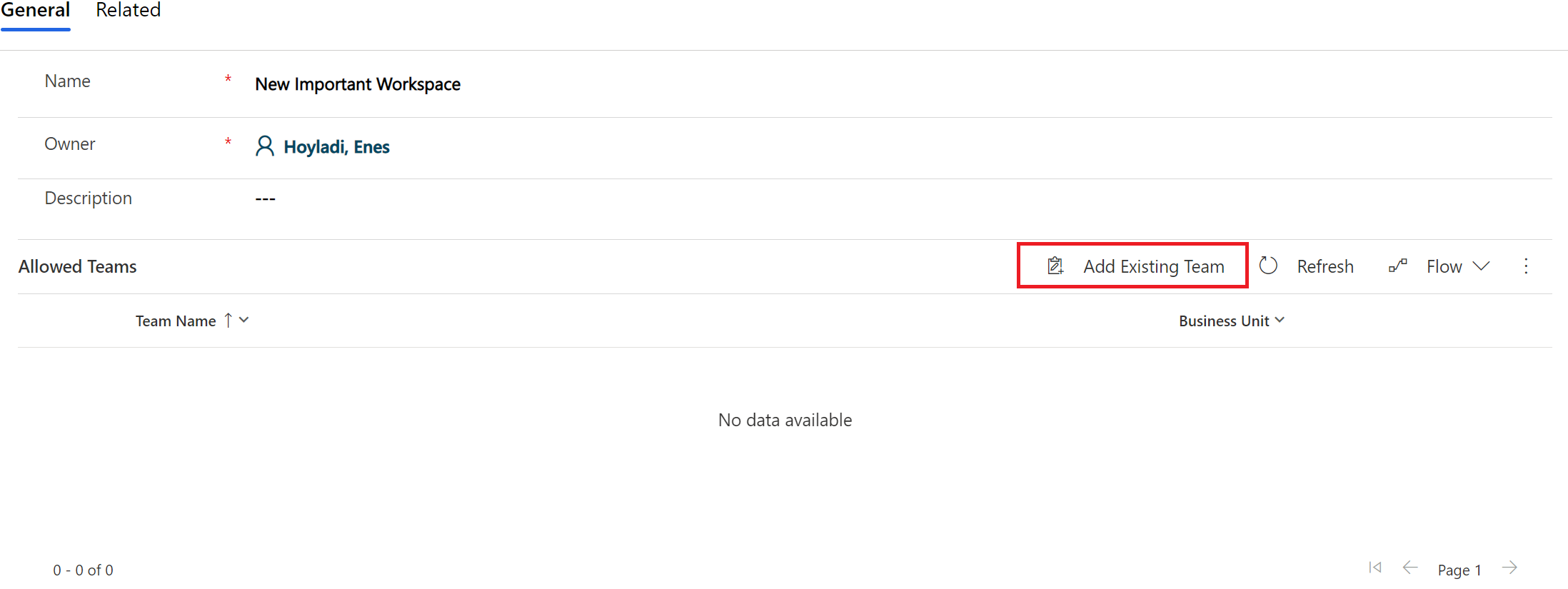
To do so, open a workspace and click on Add exisiting team in the subgrid:
A new overlay will open on the left side and present you a dialog to pick a team.
Proceed and type the teams name you want to add:
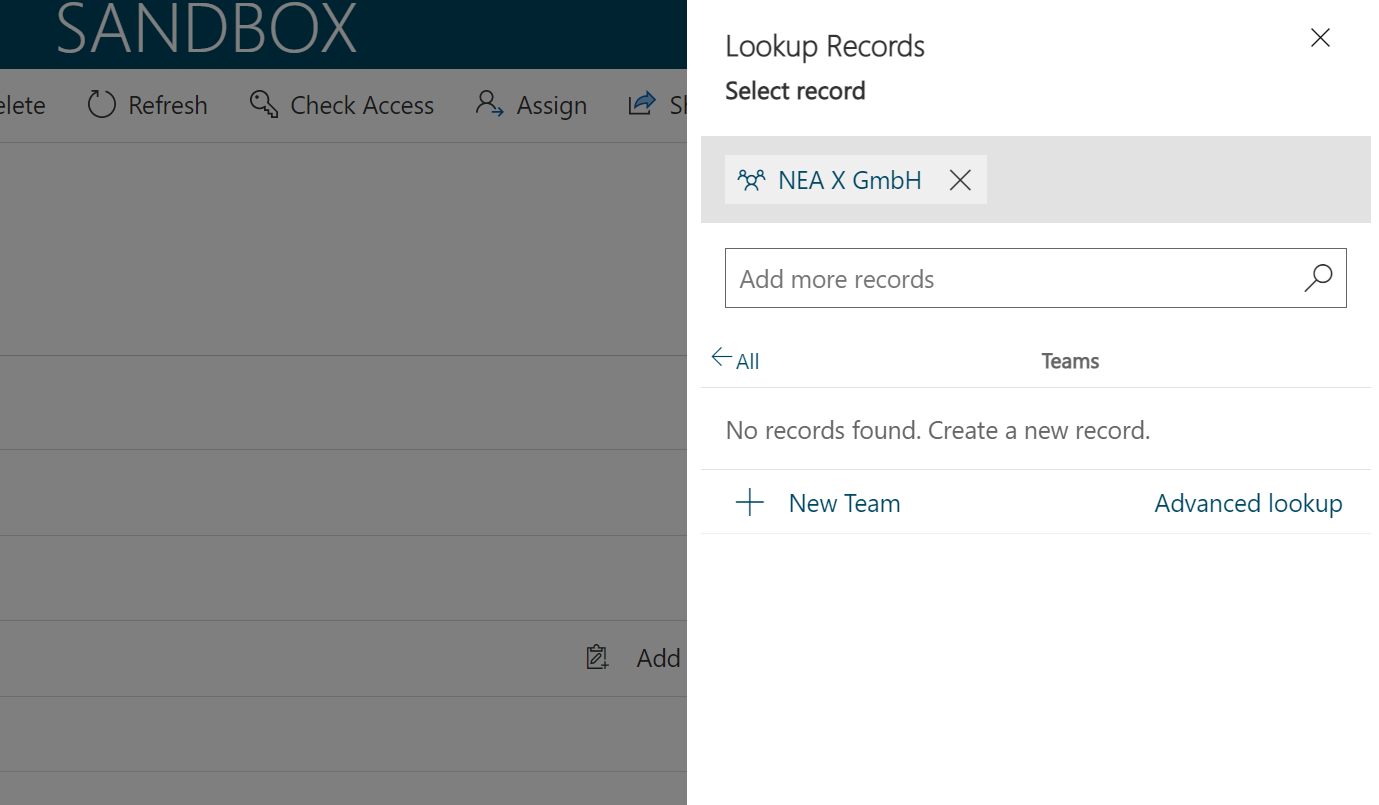
Click the Add button to finish:
Associate Focus Zone
Associating at least one focuszone is to a workspace mandatory. The best way to associate a focuszone wih a workspace is to use an existing. If you don't have a focus zone yet, please refer to adding a new focuszone.
To add an existing focuszone click Add exisiting CUZ Entity Configuration in the Focuszones subgrid:
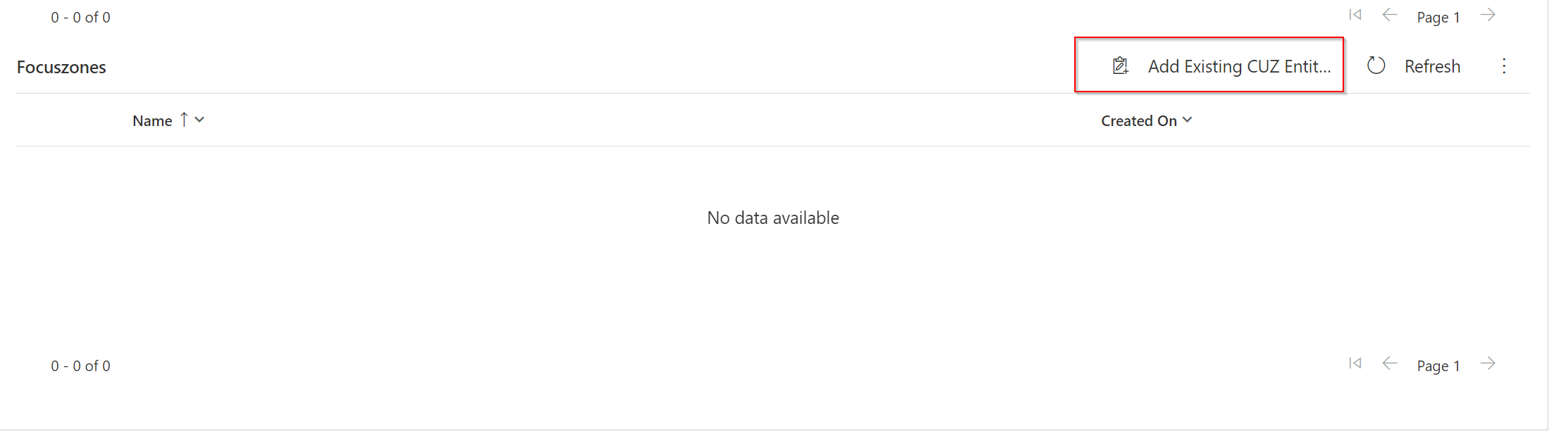
A new overlay will open up on the left side and present you a dialog to pick a focuszone:
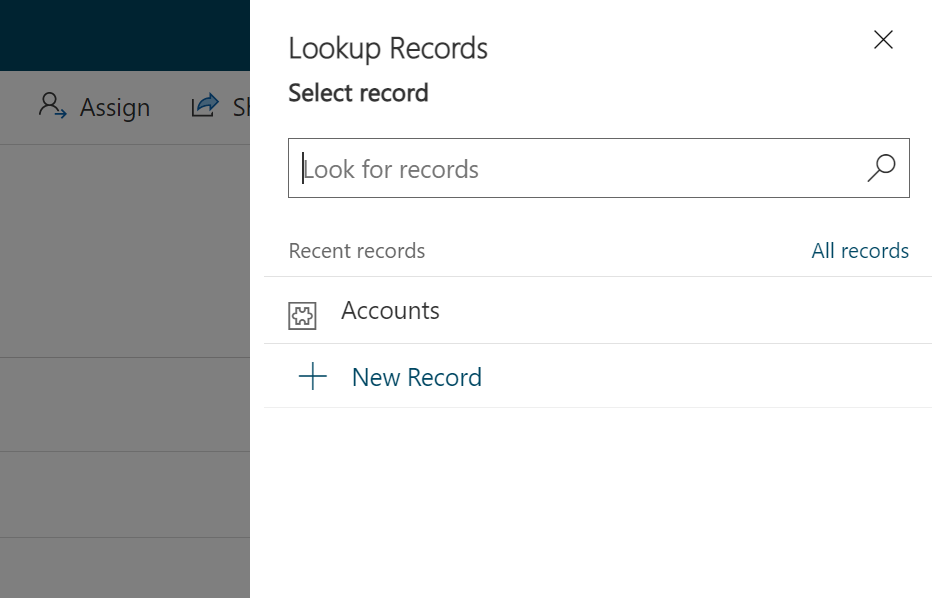
Select the focuszones you need and click the Add button to finish:
Powered by Doctave