
Buckets Quick Actions
What Are Bucket Quick Actions
Bucket Quick Actions (Image) help you define buttons on the
data card to quickly resolve / remove records.
Quick Actions are not mandatory but they are helpful to resolve quick repetitive tasks.
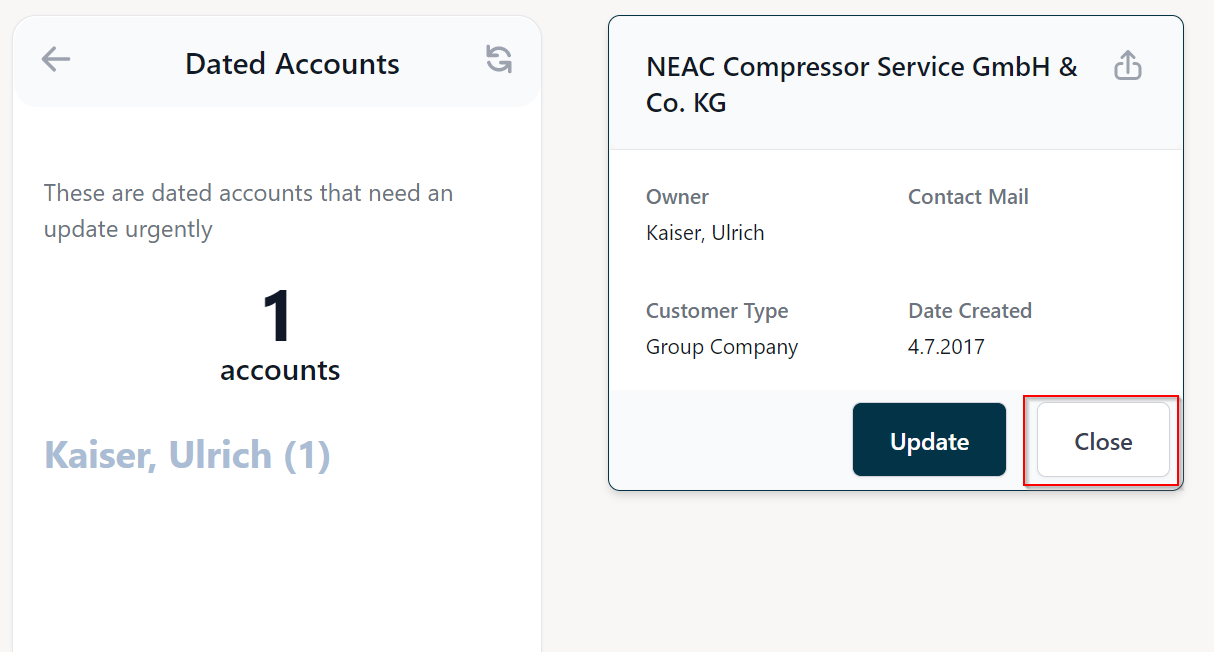
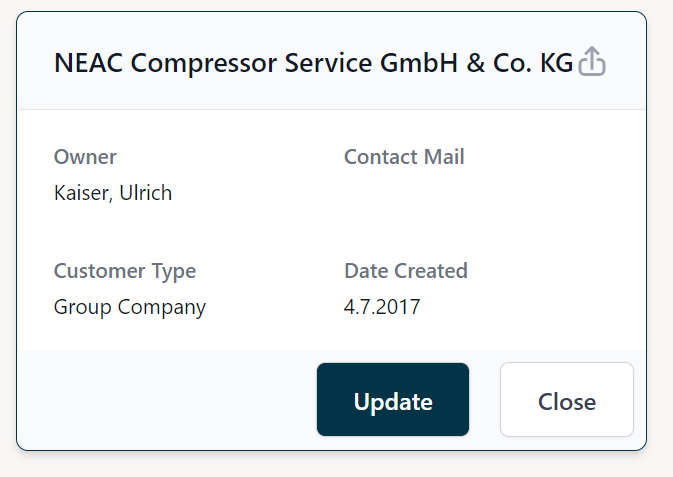
Within NEA X Focuszone UI
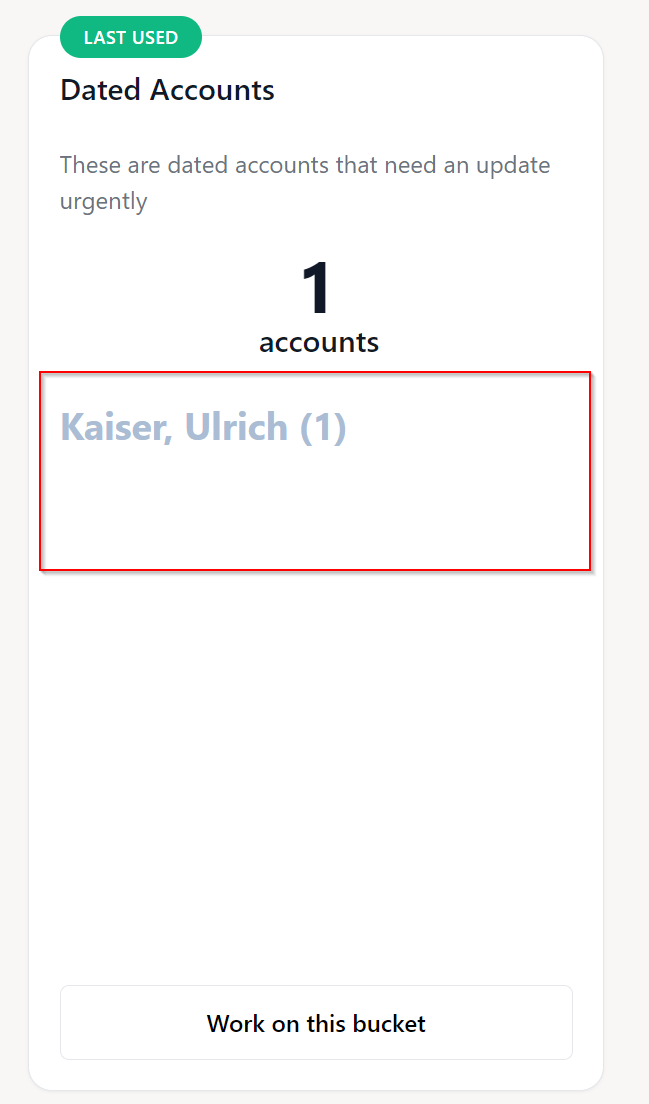
Bucket Quick Actions are displayed as buttons on the data card:
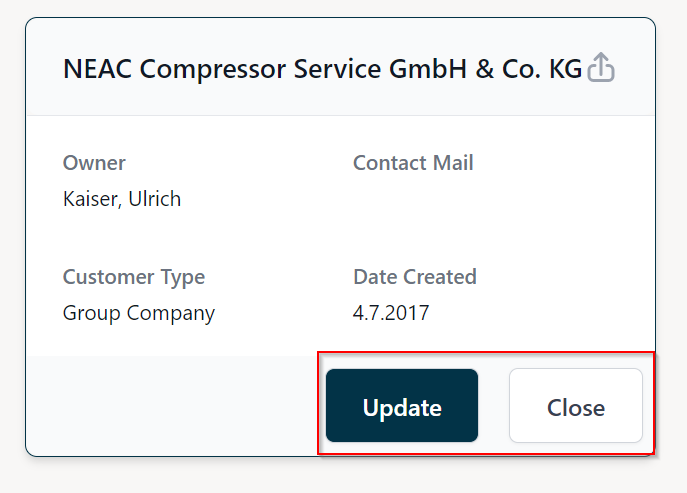
Add A New Quick Action
To add a new Bucket Quick Action open the NEA X Focuszone Configuration App, navigate to Bucket Quick Actions on
the sitemap on the left and click on New:
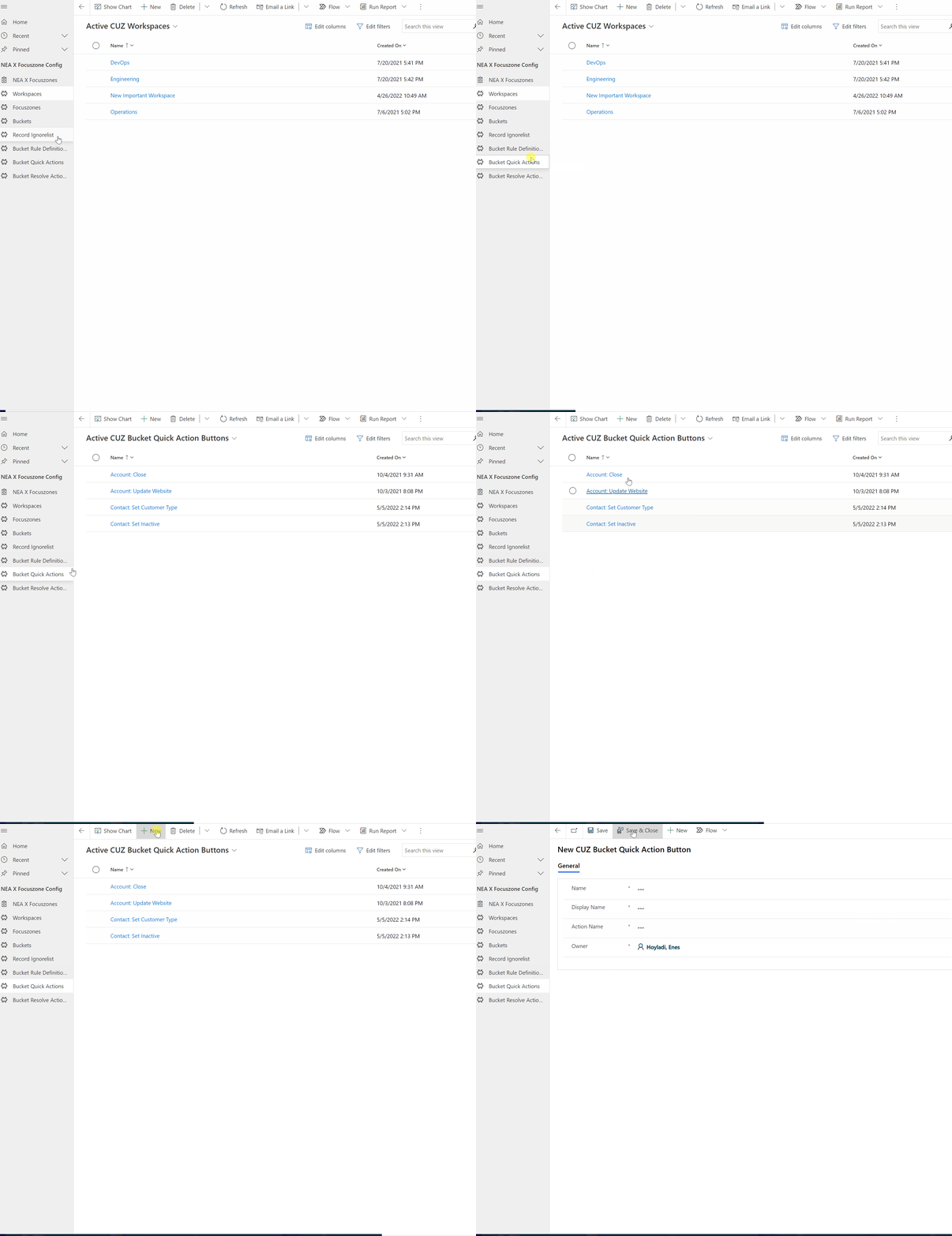
Following form should be presented to you:
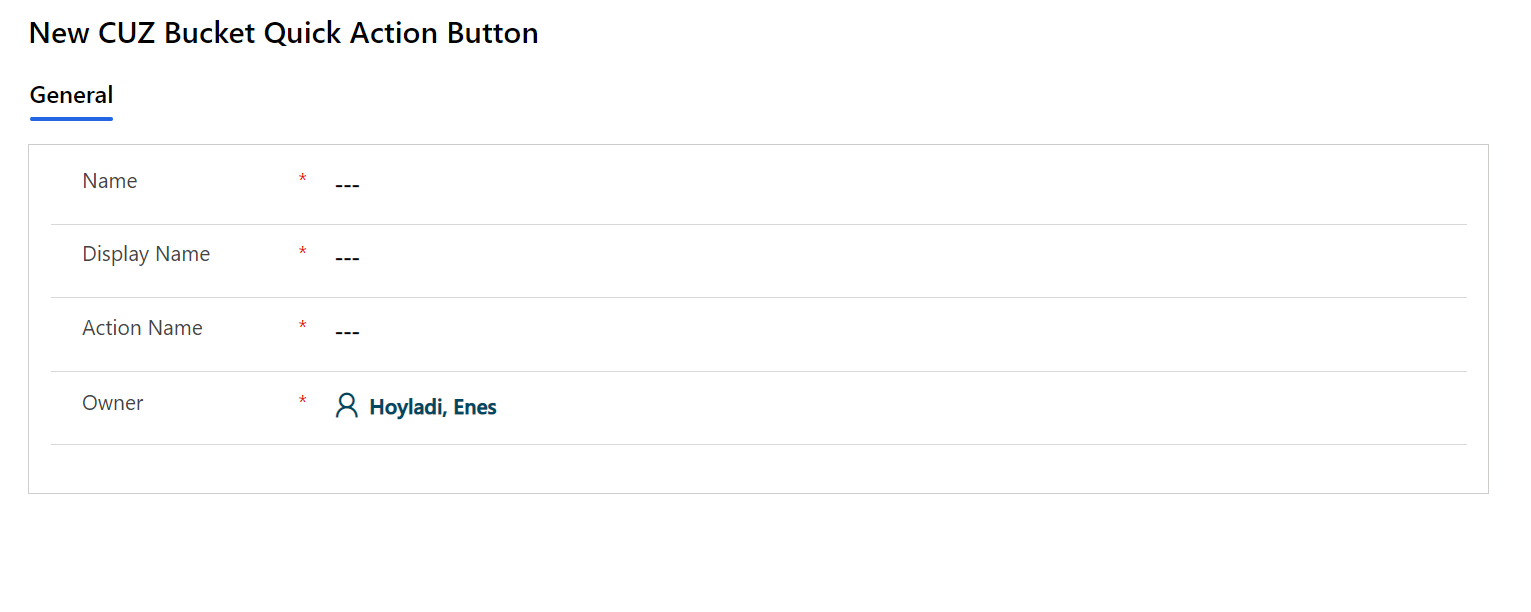
The fields on the form are for following purposes:
| Fieldname | Function | Visible in Focuszone UI | Mandatory | UI Reference Image |
|---|---|---|---|---|
| Name | Name of the quick action | No | Yes | - |
| Display Name | Display name for the button on the data card | Yes | Yes | Link |
| Action Name | Name of the Dynamics 365 Action to be performed on button click | No | Yes | - |
| Owner | Owner of the quick action record, irrelevant for functionality | No | Yes | - |
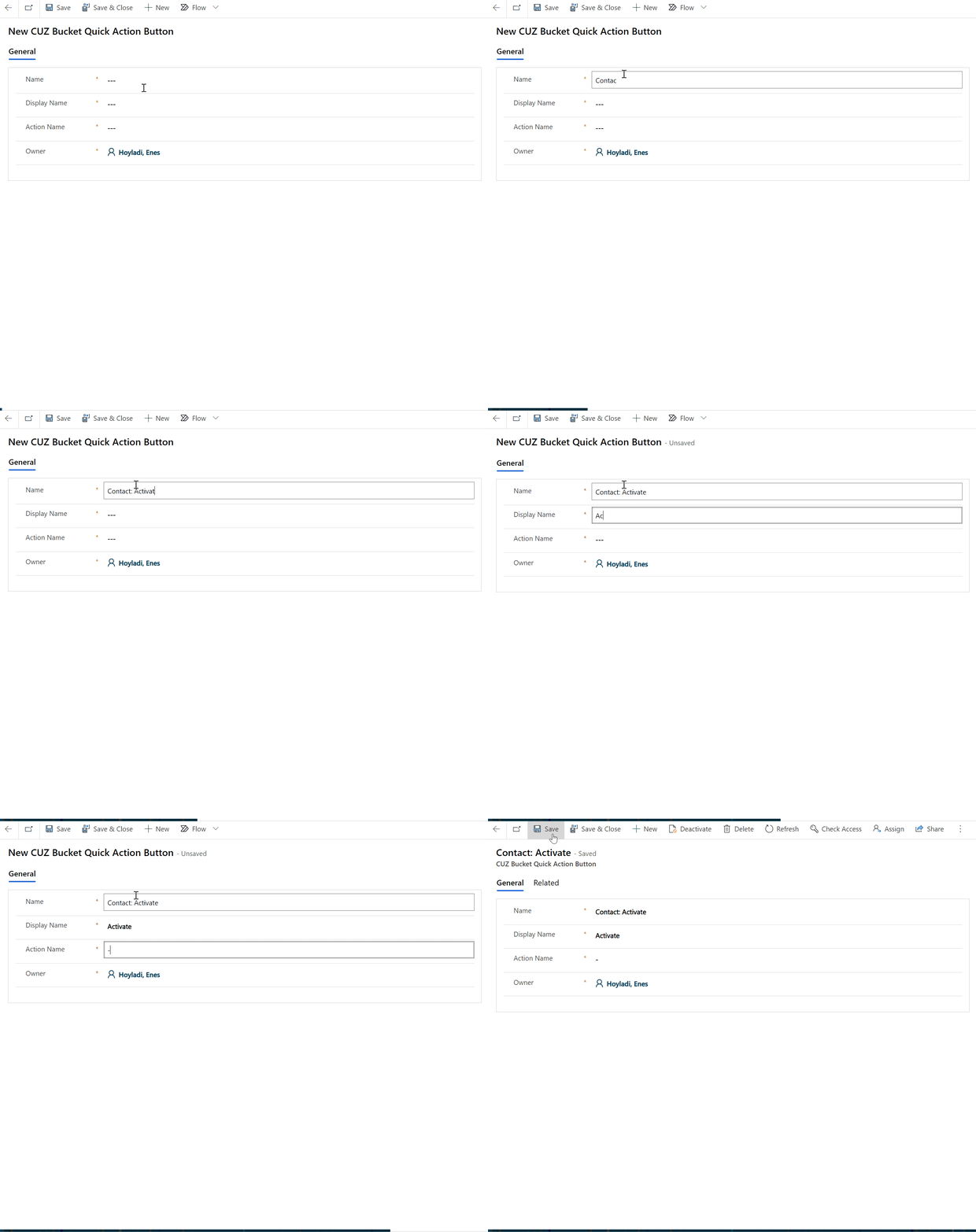
Fill in the mandatory fields and click on Save.
For now, it is recommended to add a placeholder for the Action Name field, because
the creation of a Dynamcis 365 action is handled in the next section:
Adding A Dynamics365 Action
Bucket Quick Actions use Dynamics365 Actions as the logic layer. When a Primary or Secondary Action is clicked
in the NEA X Focuszone UI the provided Dynamics 365 Action is called, via the Action Name field in the Quick
Action Definition.
Creating a new action requires expertise in Dynamics 365 Customization. If you feel unsure, please contact an admin
before you proceed. Furthermore it is not recommended to add actions in production systems.
It is best practice creating them in a Dynamics365 Solution in a Development System, test them as managed components
in a Test System and only if they function correctly deploying them to production.
Create An Action
To create an action, open the Advance Settings, navigate to Solutions and open one you want to add the action to:
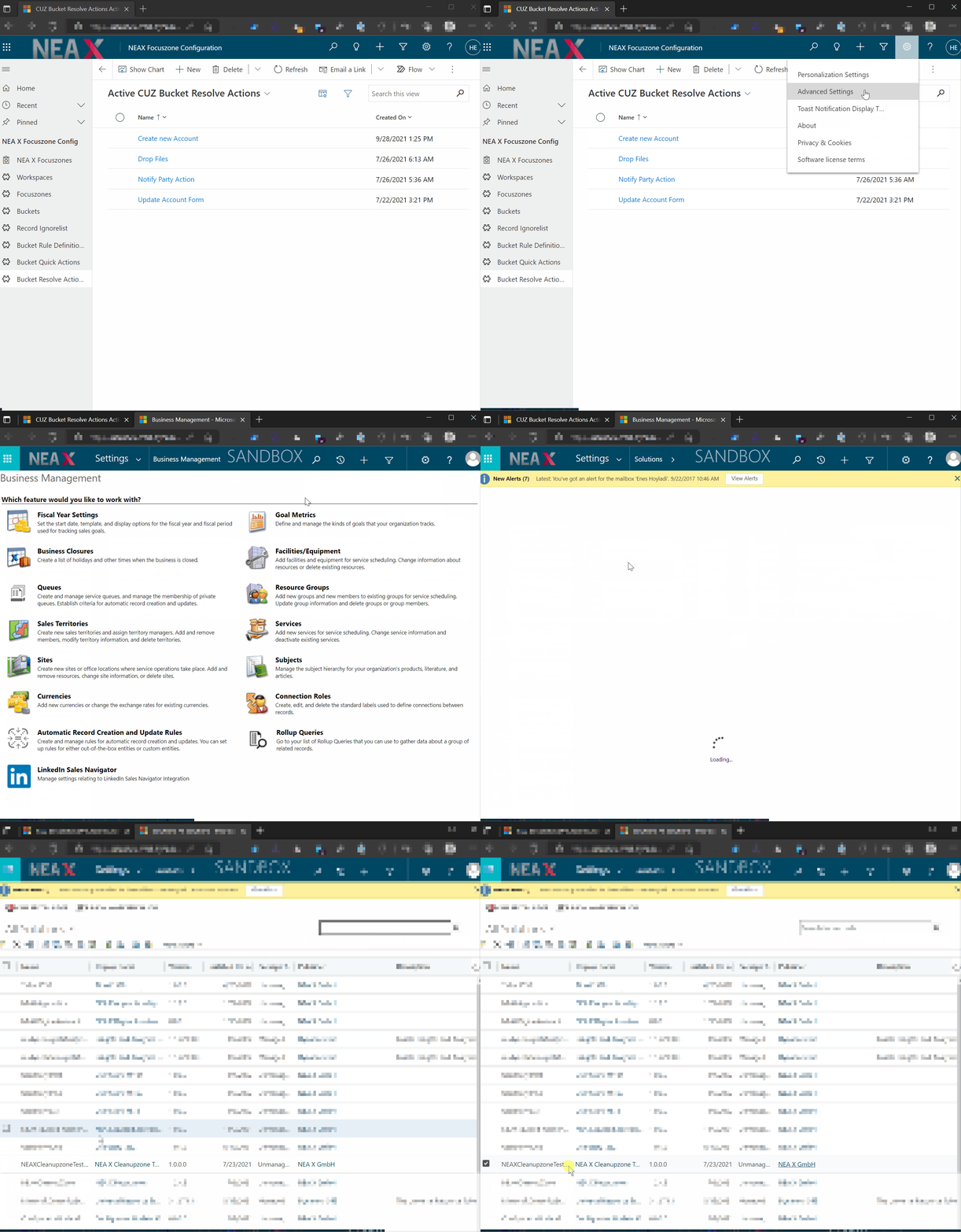
In the newly opened window, click on Processes on the left and then on New:
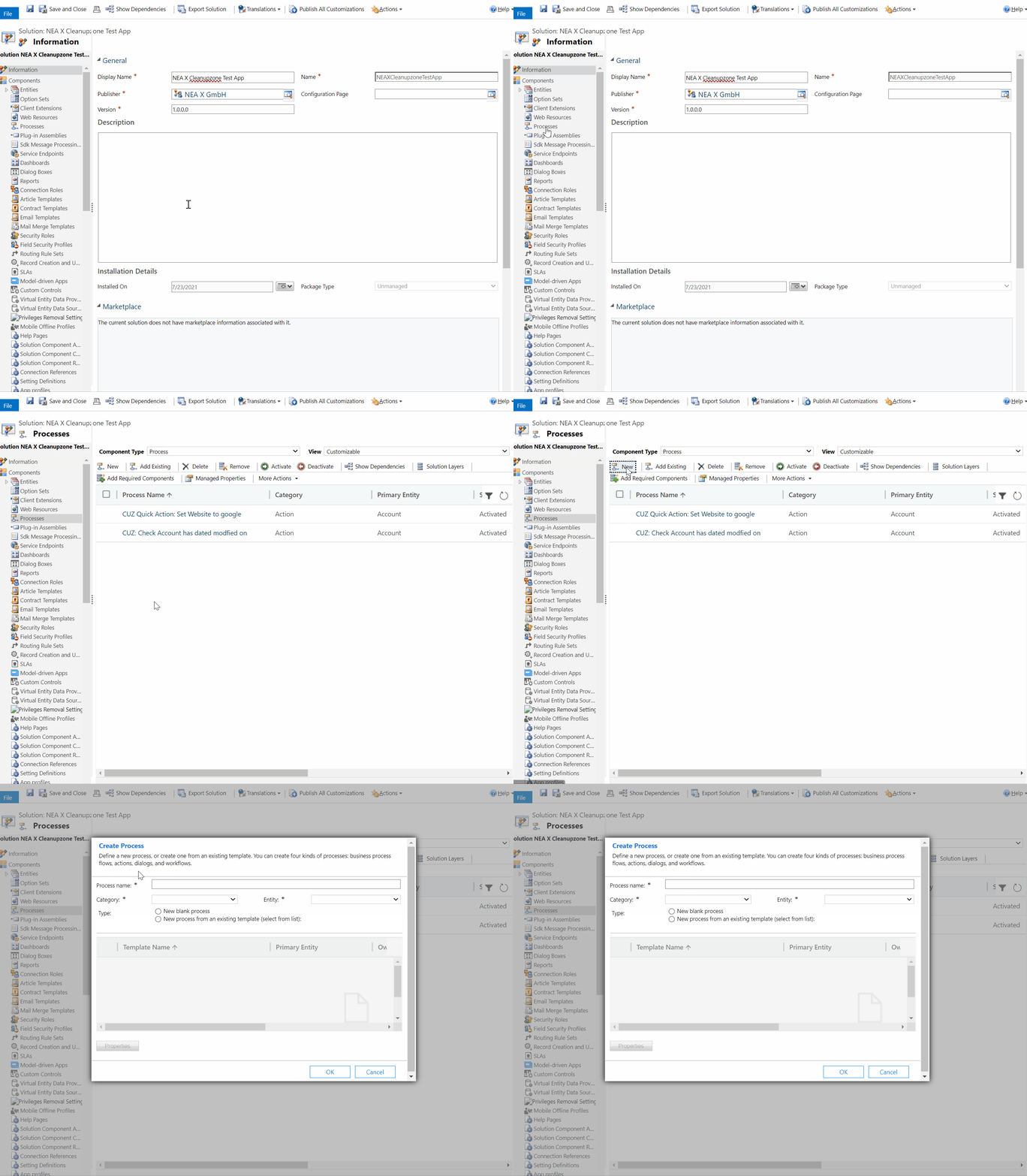
A dialog with following fields should open:
| Fieldname | Function | Can Be Modified Later |
|---|---|---|
| Process name | Name of the process. Will be used later to associate with the quick action | No |
| Category | Type of Process. Must be set Action | No |
| Entity | Type of record to be executed on. Must be the same as the bucket target entity | No |
Powered by Doctave