
Buckets
What Are Buckets
Buckets help you to organize Dynamics365 Records into containers, that are dedicated to a specific task. For example:
You can have a Workspace named Sales, a Focuszone named Accounts and within that a Bucket named
Dated Accounts to clean up legacy account data.
Within Focuszone UI
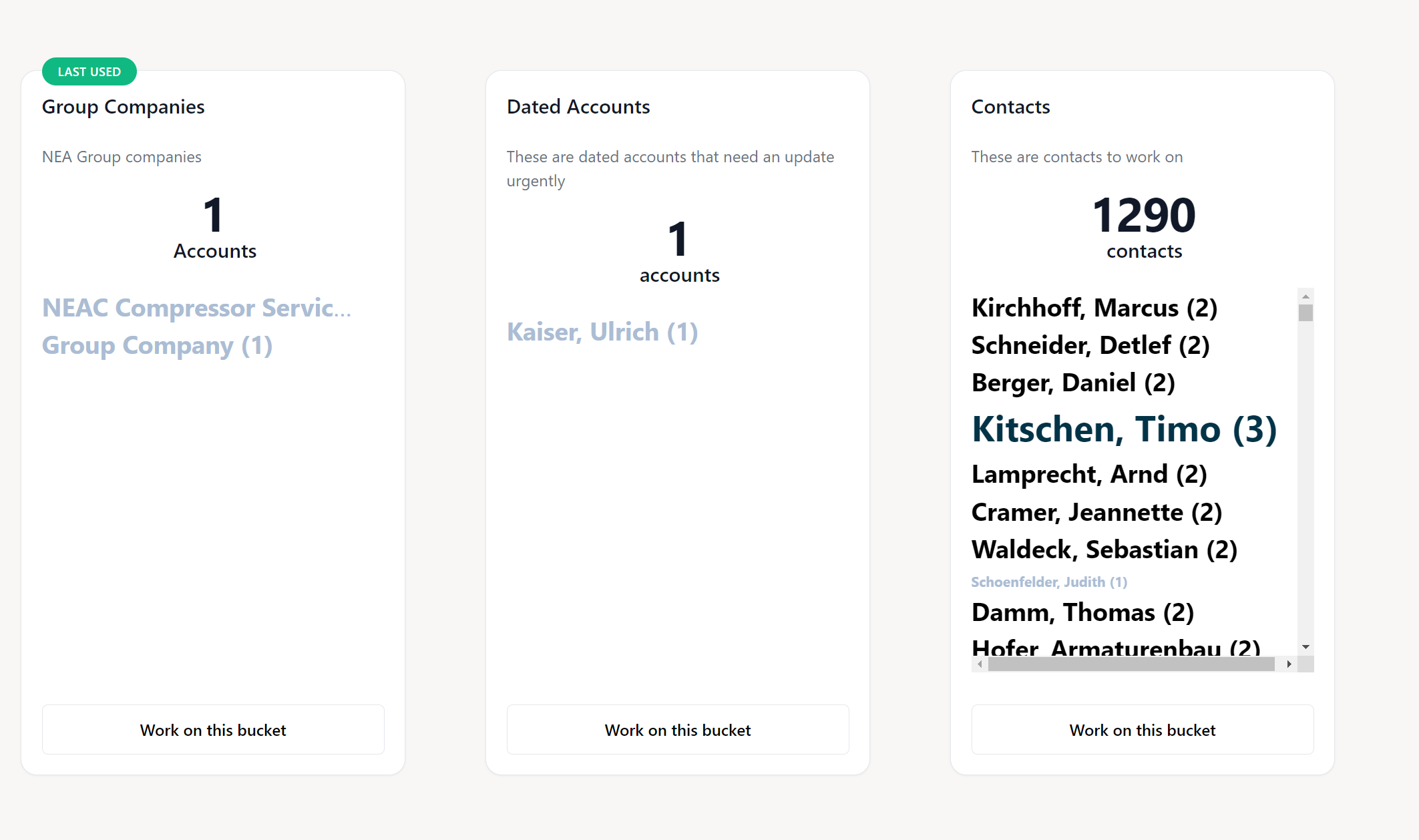
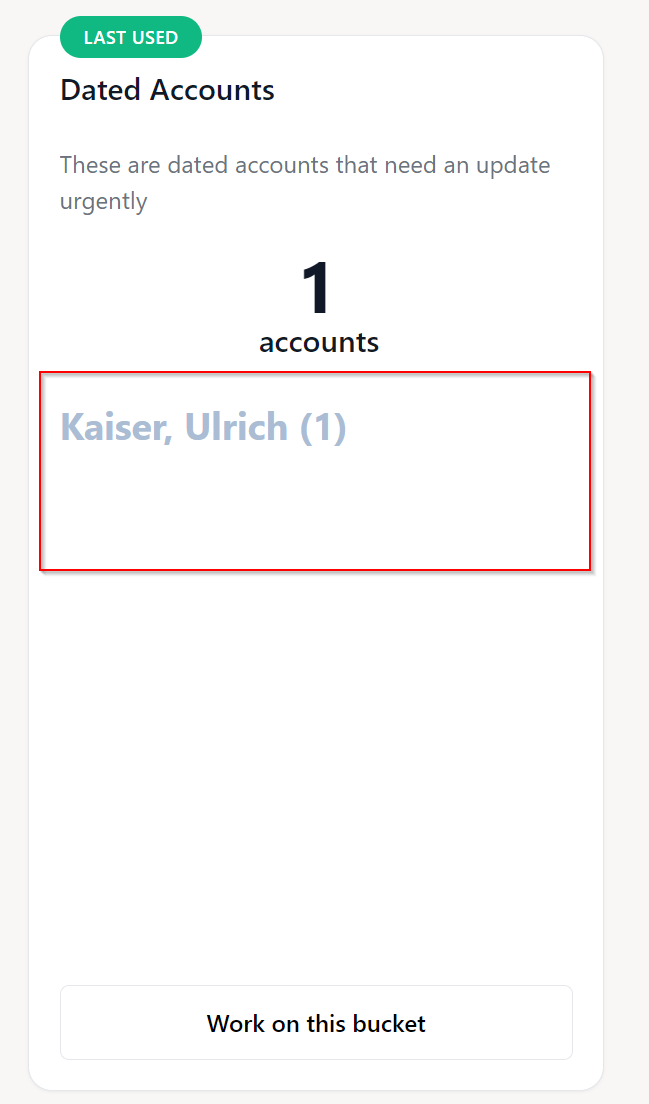
Buckets are presented as Containers with a Tag Cloud within the NEA X Focuszones UI:
Add A New Bucket
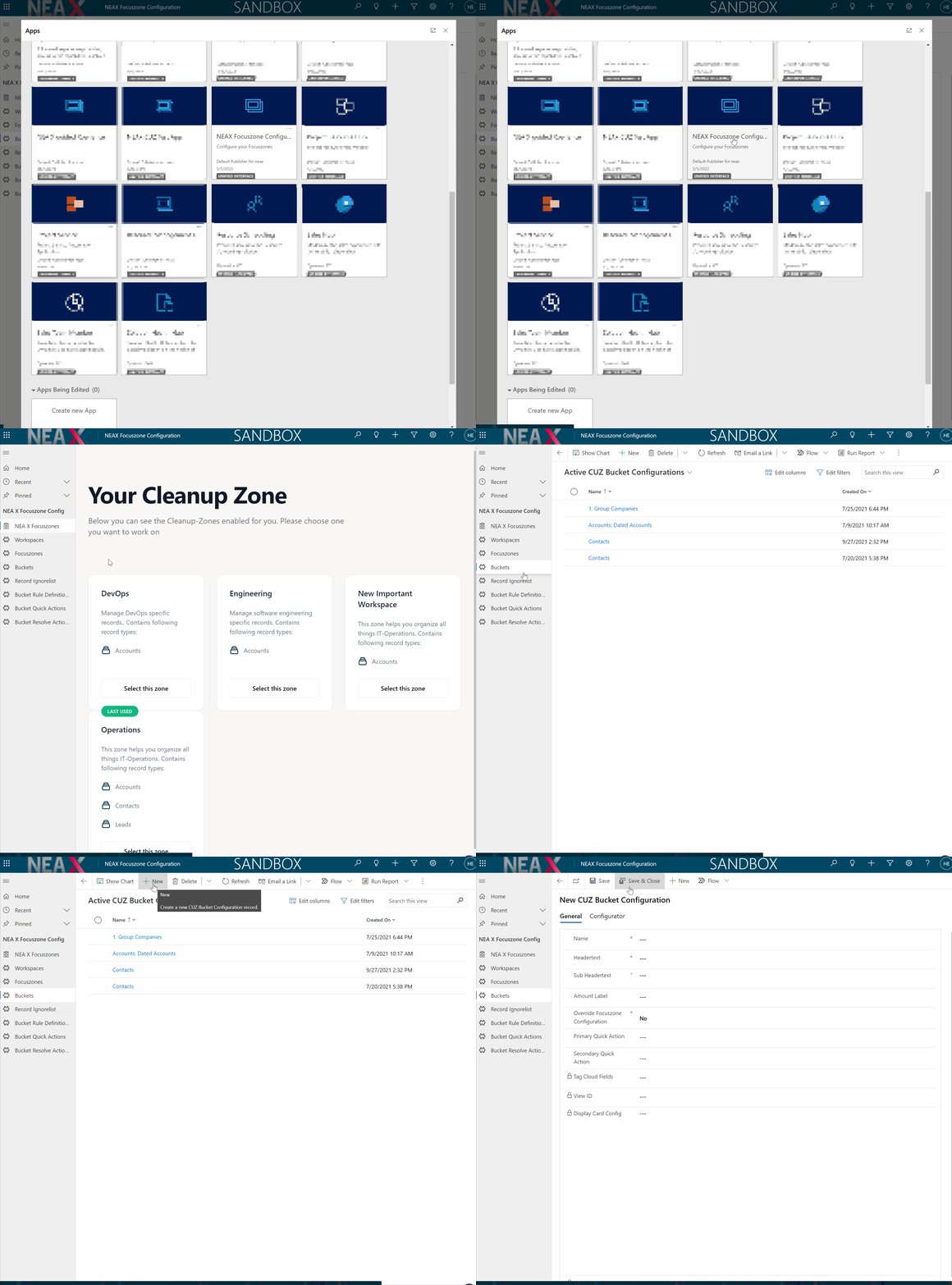
To add a new Bucket open the NEA X Focuszone App in Dynamics365, navigate to Buckets on the
sitemap on the left and cllick on New in the top toolbar:
Following form should be presented to you:
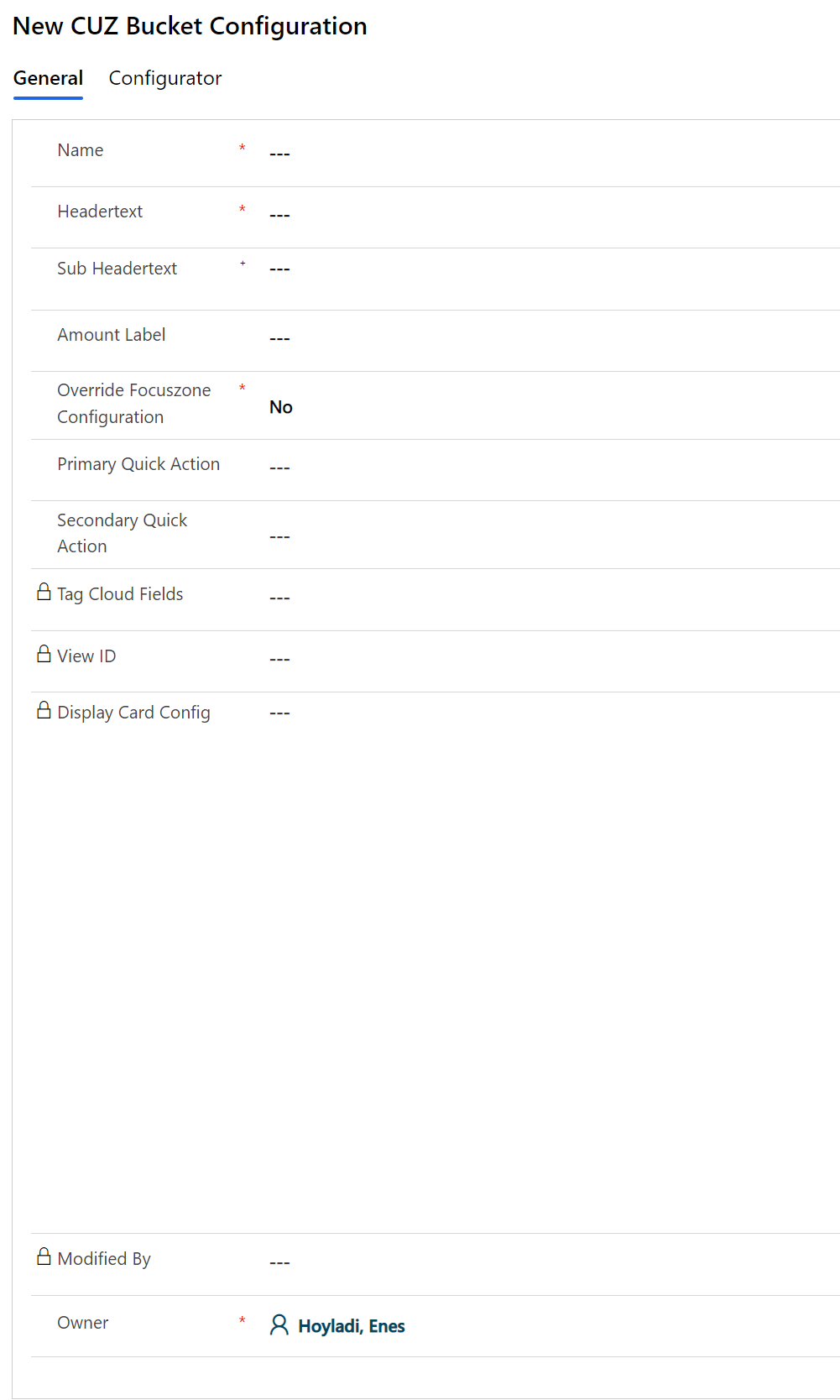
The fields on the form are for following purposes:
| Fieldname | Function | Visible in Focuszone UI | Mandatory | UI Reference Image |
|---|---|---|---|---|
| Name | Name of the focuszone | No | Yes | - |
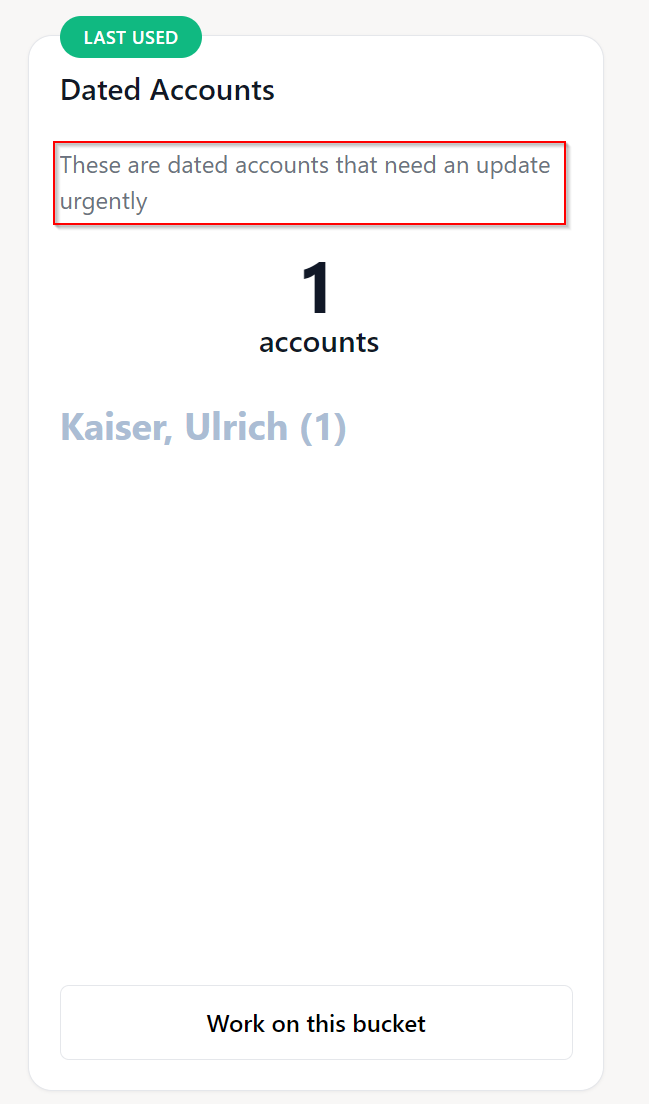
| Headertext | Headertext of the bucket container | Yes | Yes | Link |
| Sub Headertext | Sub Headertext of the bucket container | Yes | Yes | Link |
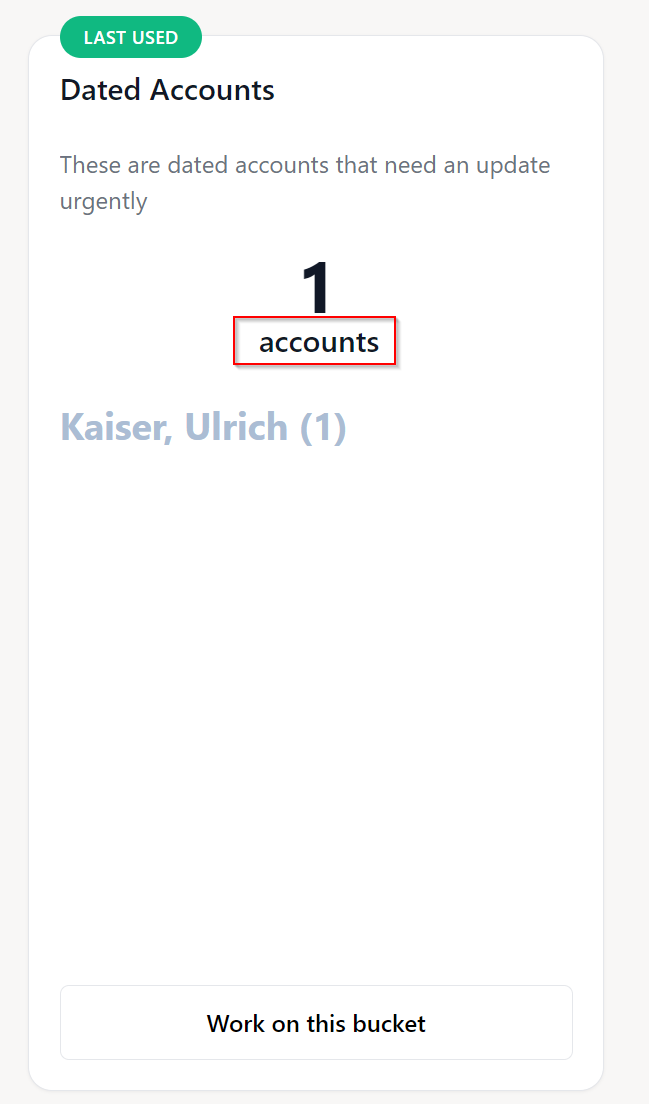
| Amount Label | Label for how many items are within the bucket | Yes | Yes | Link |
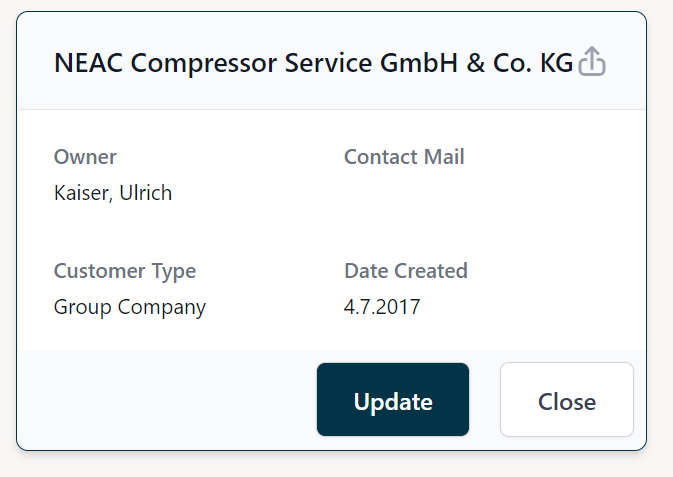
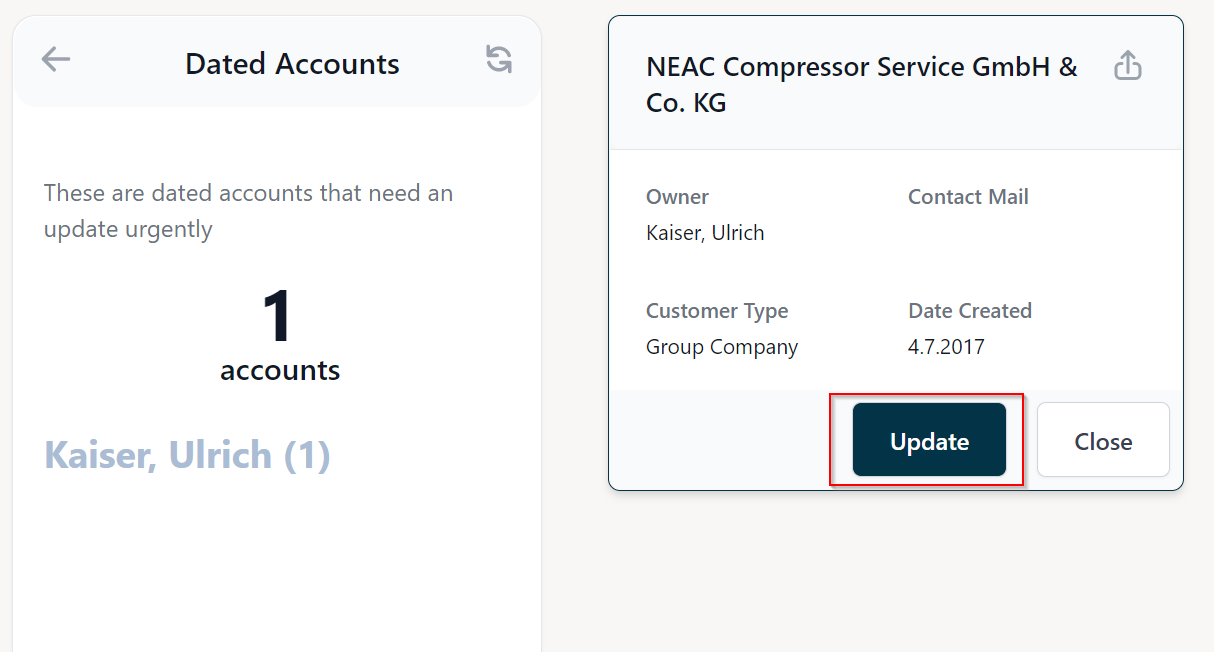
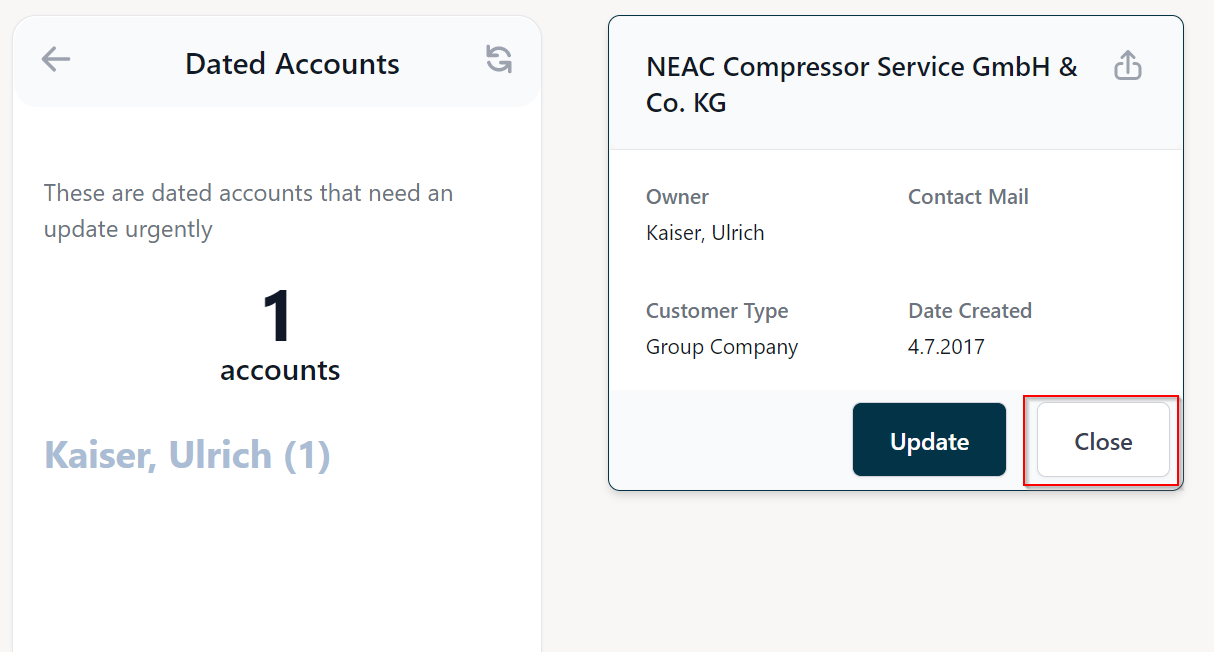
| Primary Quickaction | Primary Action on the data card in the bucket record list | Yes | No | Link |
| Secondary Quickaction | Secondary Action on the data card in the bucket record list | Yes | No | Link |
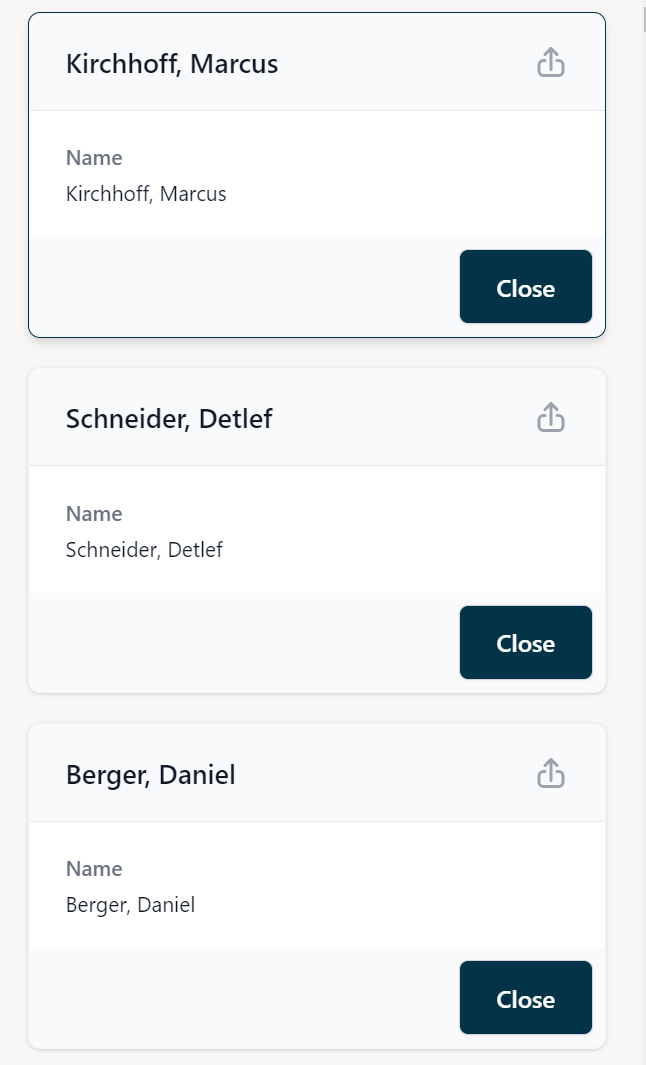
| Tag Cloud Fields | Logicalnames of the fields that the tag cloud is build on. Read-only. Written by the Configurator | Yes | No | Link |
| View Id | ID of the Systemview. Used for data retrieval. Read-only. Written by the Configurator | Yes | No | - |
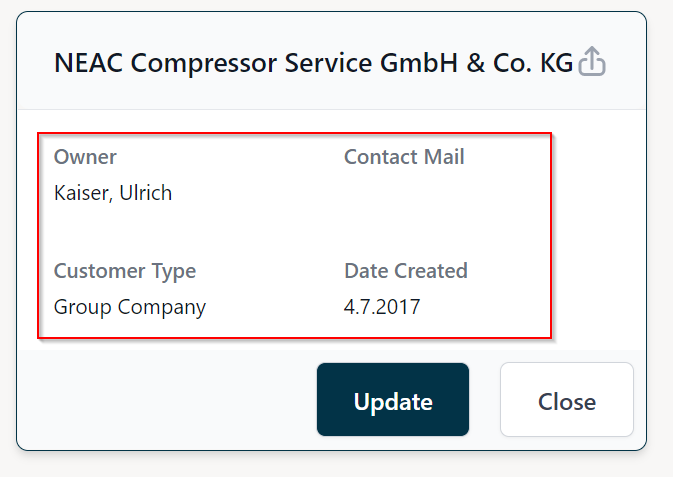
| Display Card Config | Configuration for the fields on the data card. Read-only. Written by the Configurator | Yes | No | Link |
| Owner | Owner of the bucket record, irrelevant for functionality | No | Yes | - |
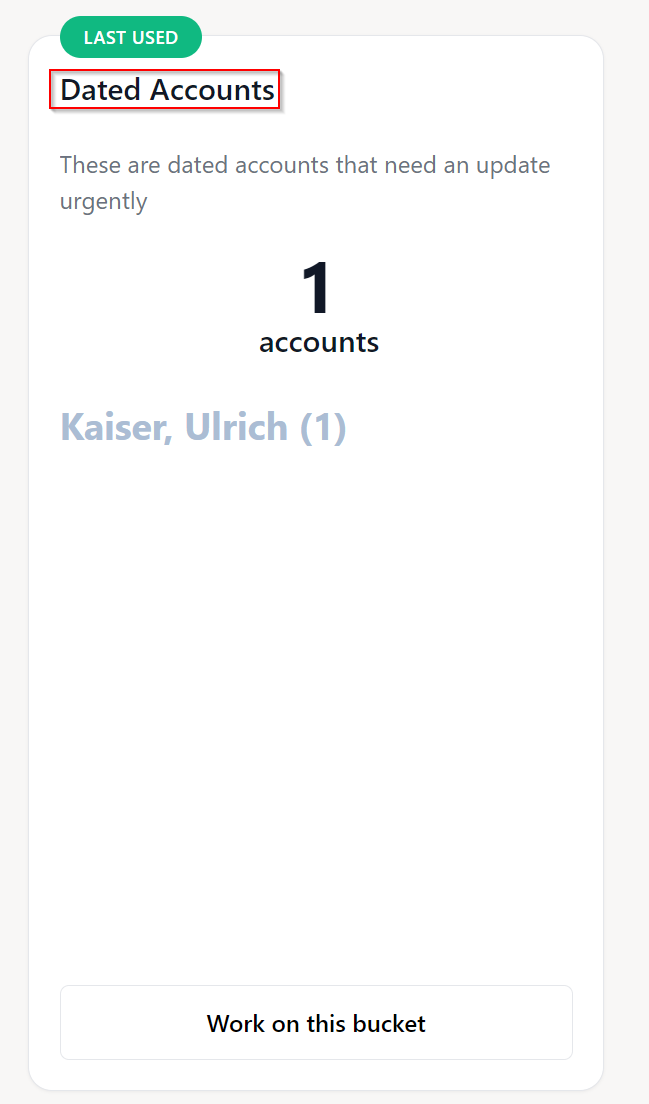
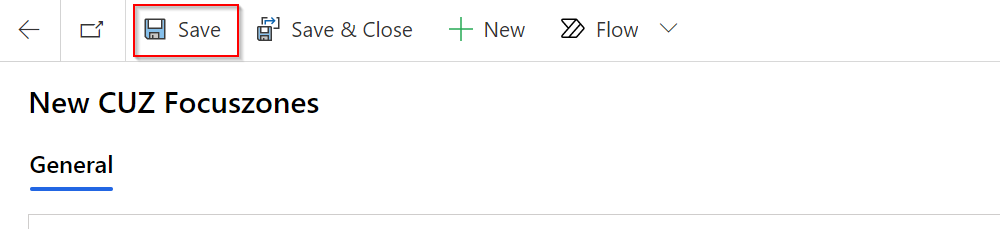
Fill in the mandatory fields and click on Save:
Configuring A Bucket
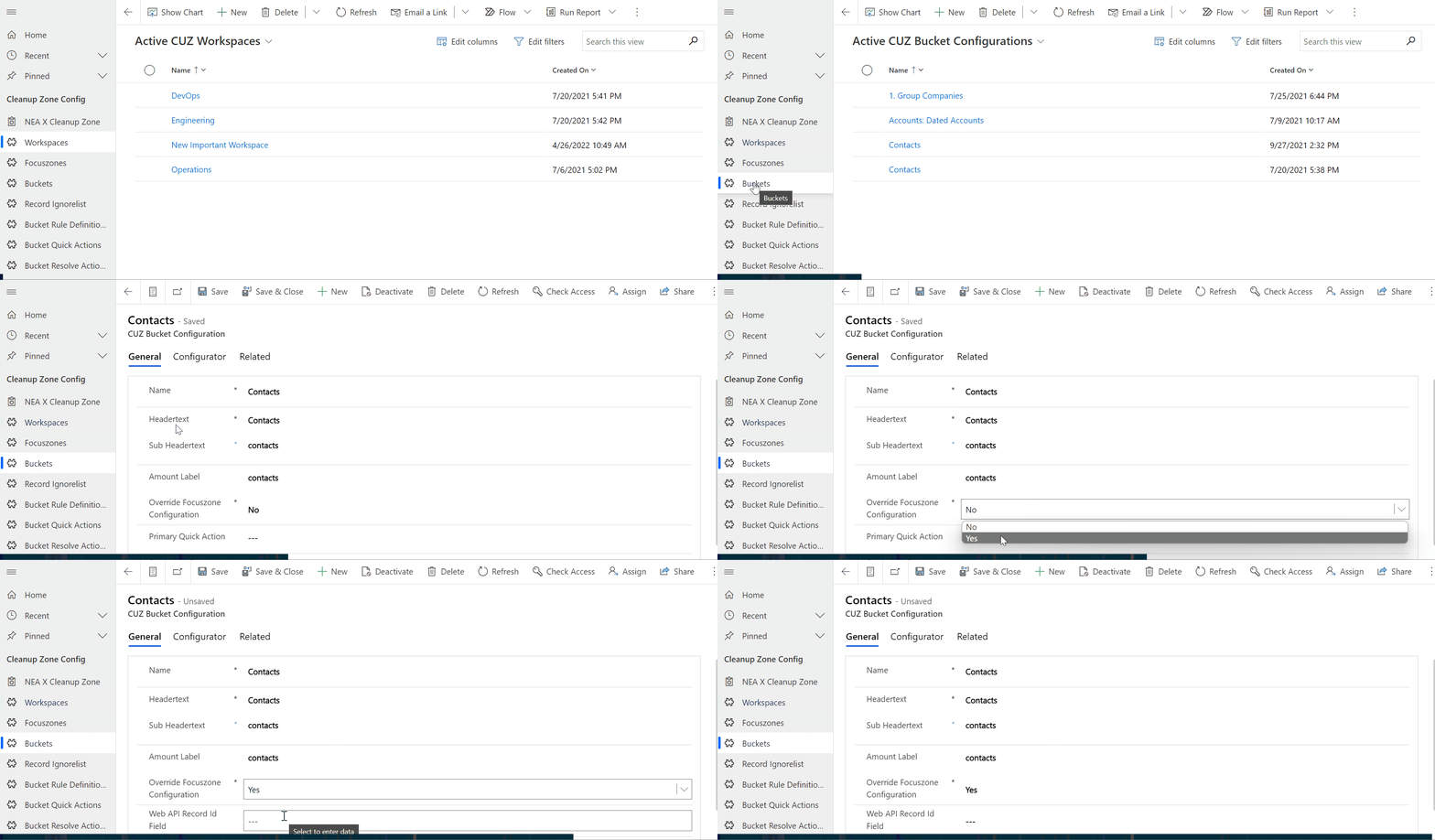
After creating a new Bucket, you need to configure it further.
To do so, open an existing bucket and set the Overrride Focuszone Configuration field to Yes:
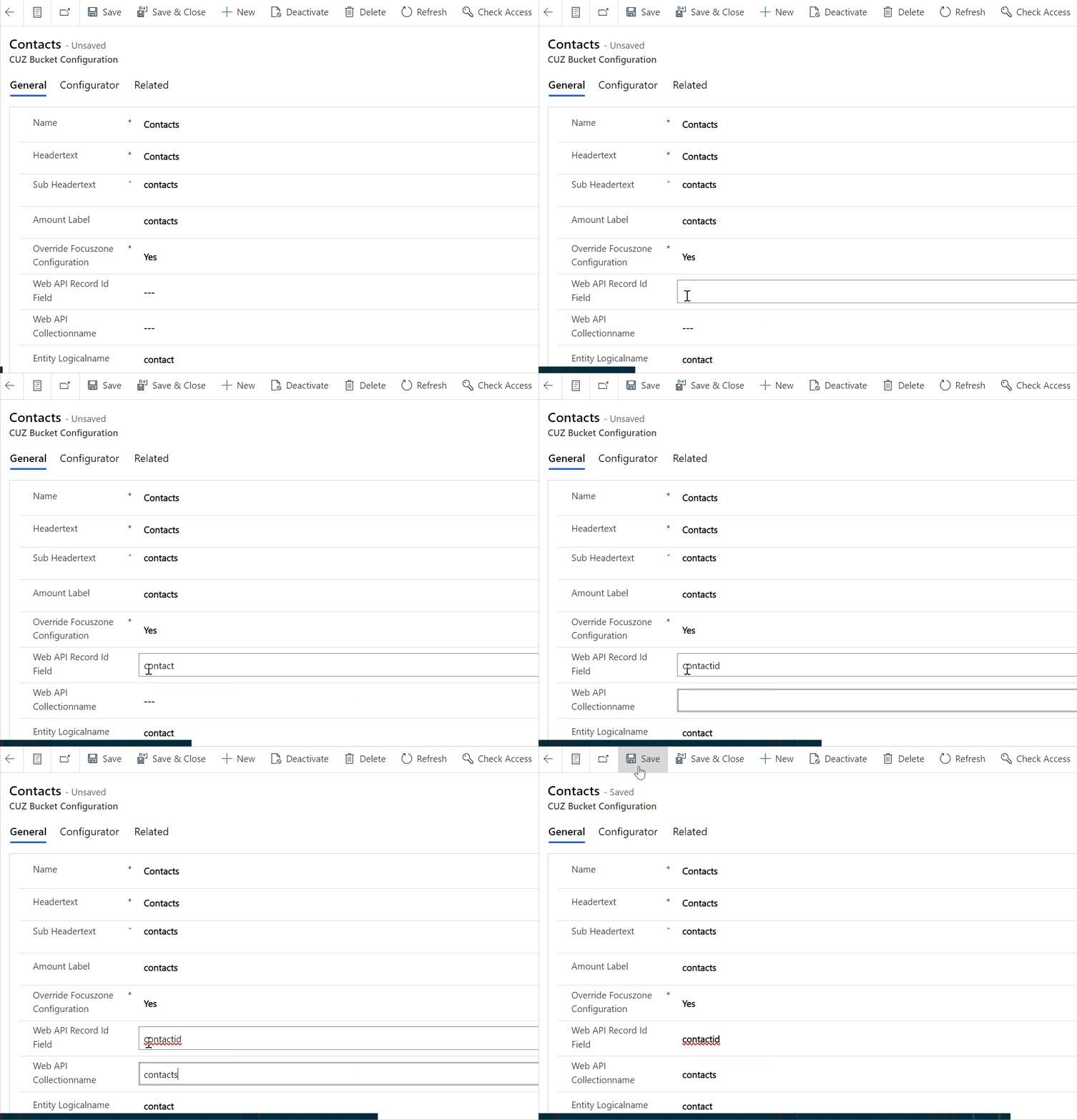
Fill in the Web Api Record Field Id and the Web Api Collection Name fields and click on Save:
Click on the Configurator tab and the NEA X Bucket Configurator should load properly:
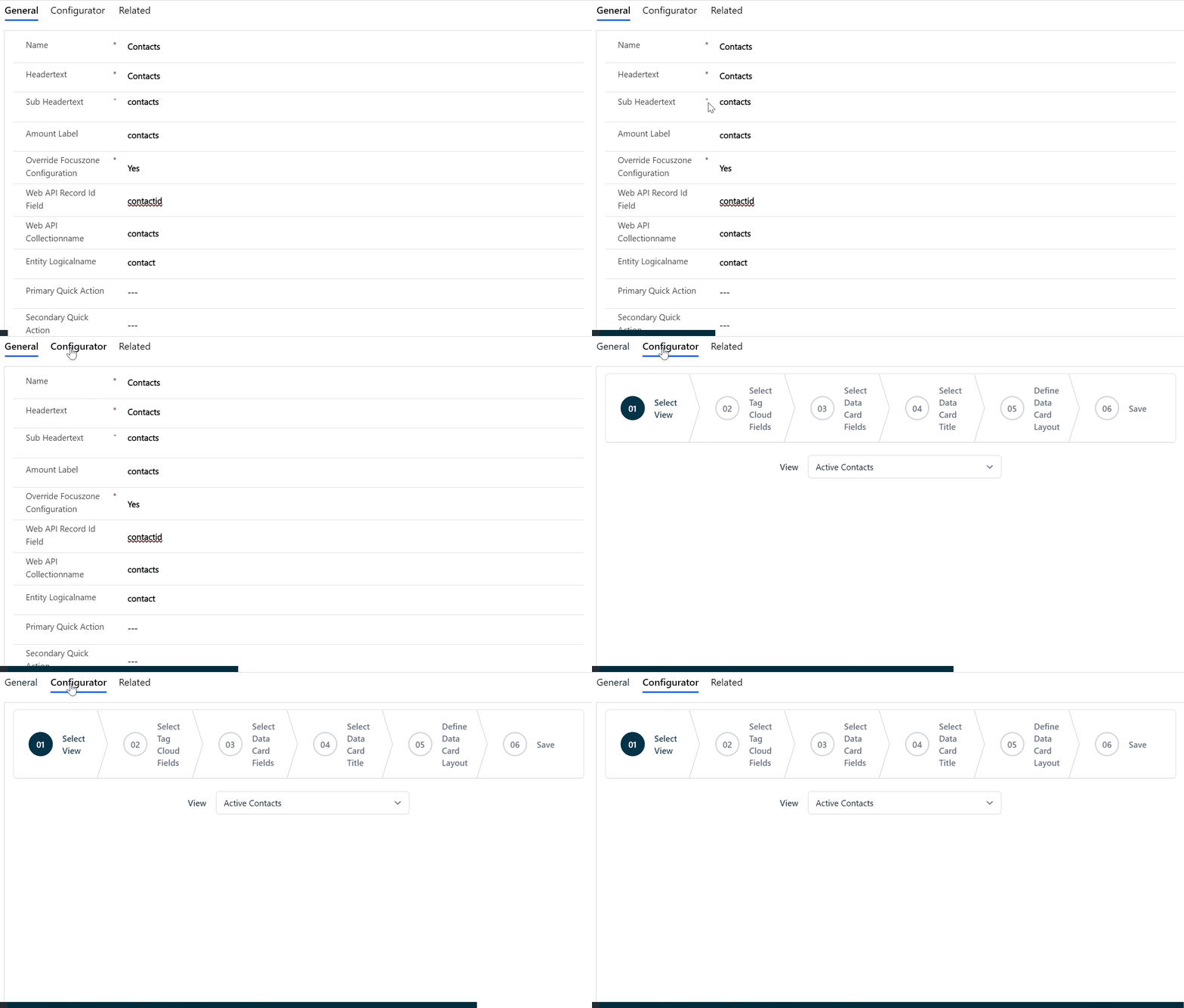
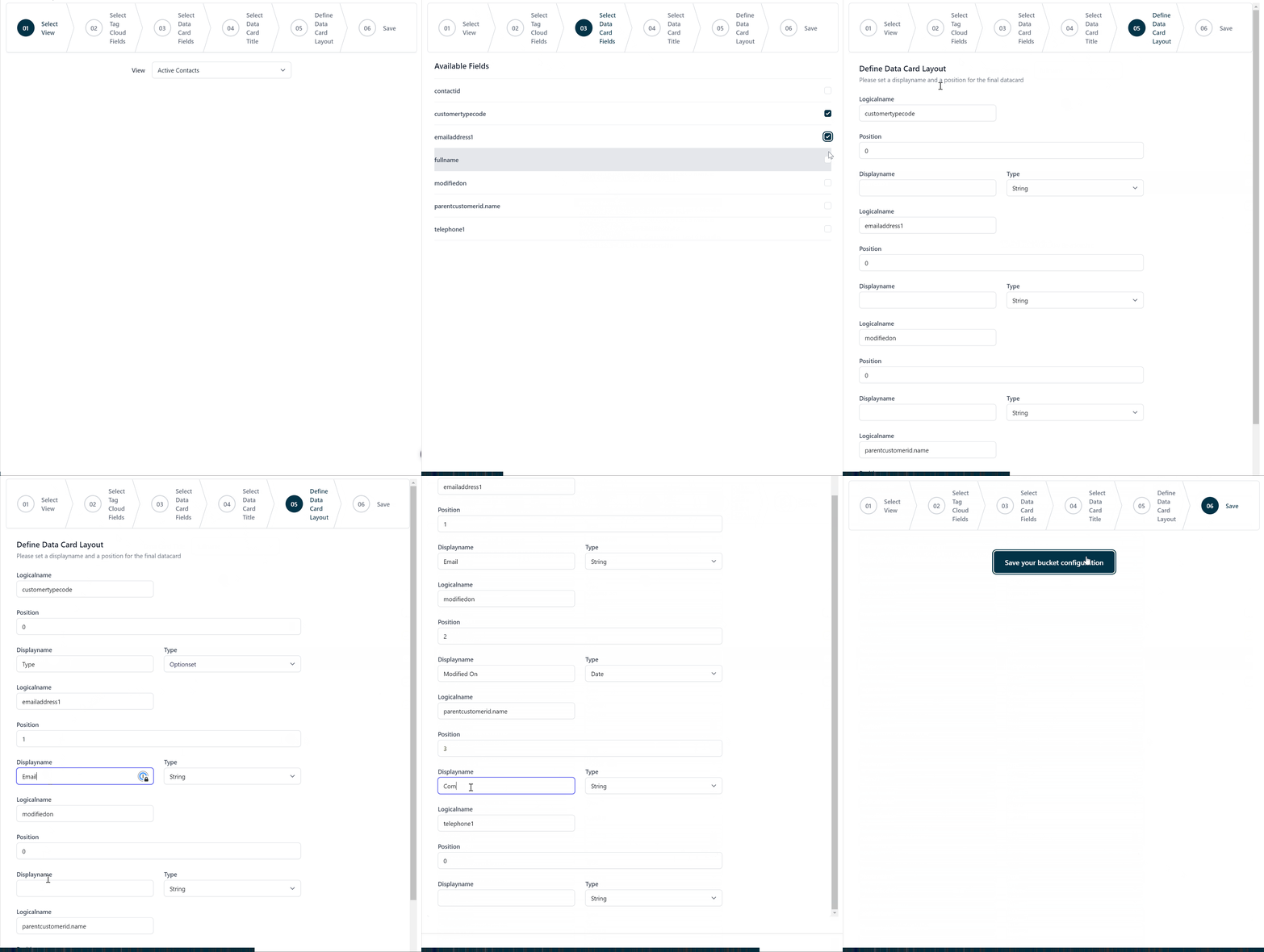
Follow the steps within the Configurator to finish up the basic bucket configuration:
Associate Quick Actions
Quick Actions (Image) help you define buttons on the data card to quickly resolve / remove them. Associating quick actions is not mandatory for a bucket to work, they are only helpful to resolve quick repetitive tasks. To associate a quick action to a bucket, we assume that a quick action is already created. For creating a new quick action, please refer to adding a new quick action.
Follow these steps to associate a primary quick action:
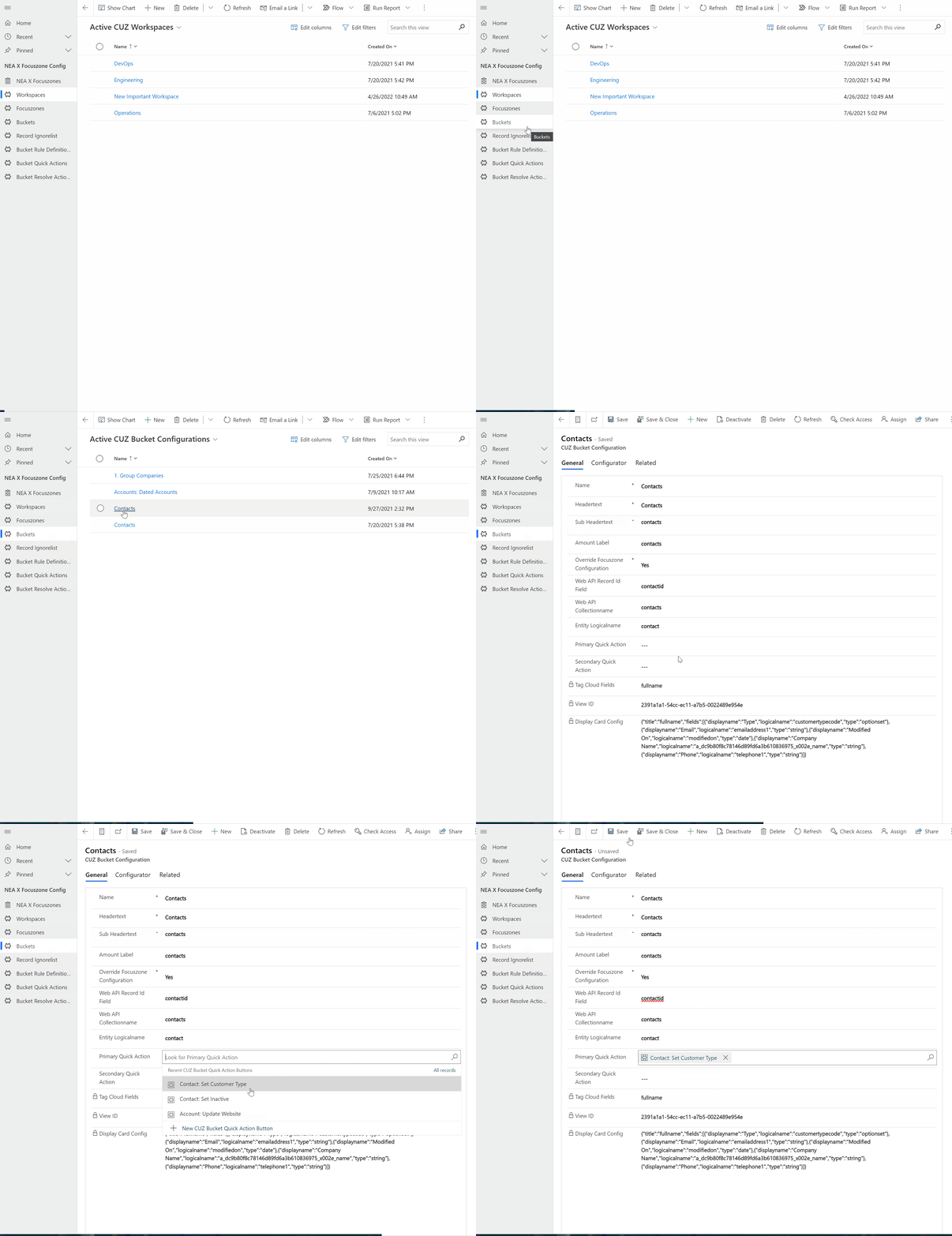
The steps to associate a secondary quick action are equivalent.
Next Steps
The basic setup for a bucket is now complete. But for the NEA X Focuszone App to function properly, you should consider adding
Resolve Actions and
Rule Definitions.
Powered by Doctave